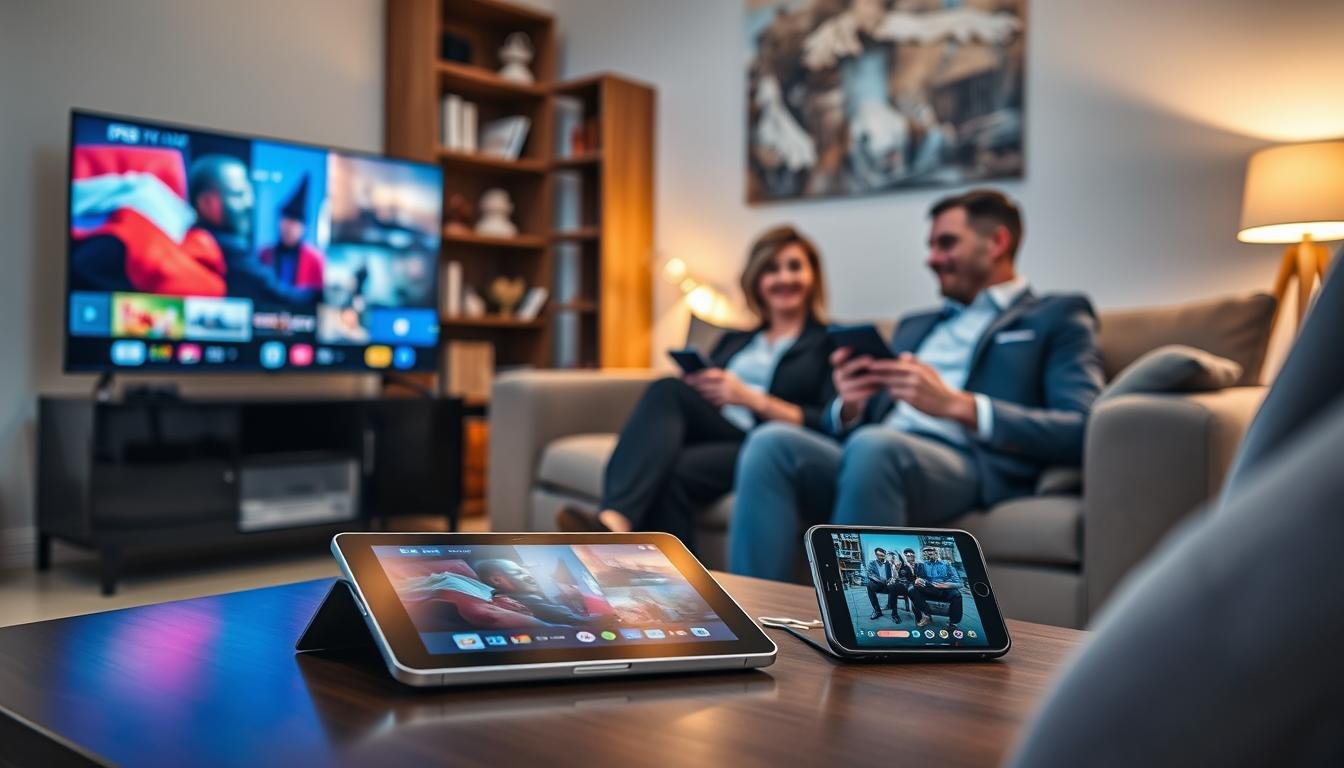
IPTV Multiple Devices
Surprising fact: over 60% of US households now use internet-based TV to watch shows, and many want to watch on more than one screen at once.IPTV Multiple Devices on iptvfly.com .
This guide promises a clear path to stream iptv across multiple devices in one home and on the go without confusion.
You’ll see exactly which device types work best — smart TVs, phones, tablets, computers, and streaming sticks — so you know what “devices” means in daily life.
What matters most: your internet speed, the app you use, and your subscription limits. We also flag common pain points like buffering and login limits and show fixes you can try right away.
If you’re in a hurry, jump to the device setup section for step-by-step instructions. Otherwise, follow the guide to align your goals and watch different channels in different rooms with confidence.
Key Takeaways
- You can stream iptv to several devices in your home and while traveling.
- Smart TVs, phones, tablets, computers, and sticks are covered.
- Good internet, the right app, and subscription rules matter most for smooth streaming.
- The guide shows quick fixes for buffering and connection limits.
- Jump to device setup if you need fast, practical steps.
What IPTV Is and Why Multi-Device Streaming Matters Today
Streaming TV over the internet means your shows arrive as data packets instead of via a coax cable or satellite dish. That difference changes how performance behaves: it depends more on your home network than on a traditional set‑top box.
How it works versus cable and satellite
Your provider sends video over internet protocols, so smart TVs, phones, tablets, and computers can play the same content if the app supports them. Unlike cable, quality and buffering hinge on your router and Wi‑Fi.
Why compatibility matters
IPTV compatibility means the app and stream format must run well on each gadget. An app that feels smooth on a phone can behave differently on a TV. Choose apps that list platform support before you sign up.
Everyday household benefits
For families, the upside is clear: one person watches sports in the living room while another picks cartoons on a tablet. You get flexible viewing, easier travel access, and less remote fighting — as long as your plan and connection allow you to watch different channels at once.
What You Need Before You Stream IPTV Across Devices
First, make sure your home network can deliver steady video to every screen you plan to use. A fast plan helps, but stability and coverage matter just as much.
Internet basics: stability, router quality, and Wi‑Fi coverage
Non‑negotiables: a stable internet line, a modern router, and good Wi‑Fi in rooms with TVs and streaming sticks.
Check for dead spots in back bedrooms, basements, and garages. Those areas often cause buffering on big screens.
Least Mbps you should plan for per stream
Use these targets when you plan household usage:
| Quality | Recommended least Mbps | Typical use |
|---|---|---|
| SD | ~5 Mbps | Small screens, low detail |
| HD | ~10 Mbps | Most TVs and tablets |
| 4K | ~25 Mbps | Large living room TVs and premium content |
Wired vs. wireless connections
Ethernet gives the best consistency for living room TVs and streaming sticks. It cuts latency and reduces buffering.
Wi‑Fi is fine for phones and tablets when coverage is strong. If Wi‑Fi falters, consider a mesh system or wired backhaul.
- Estimate total need: add per‑stream mbps to see if your plan supports simultaneous play.
- Remember: raw speed isn’t everything—latency, interference, and congestion also affect picture quality.
Choosing the Right Subscription Plan for Multiple Devices
Pick a subscription plan that matches how many people watch at the same time, not how many gadgets you own. The key is understanding what “multi-connection” means for your account.
What “multi-connection” means and how providers enforce limits
Multi-connection refers to concurrent streams — how many active plays run under one login at once. Providers enforce this by tracking simultaneous logins or active streams per account. Hitting the limit usually occurs during peak hours, when family members watch live shows together.
Typical connection ranges by plan
Most basic plans allow about 1–3 connections. Mid-tier options commonly offer 2–5. Premium plans may permit roughly 5–10 simultaneous streams. Always confirm the exact number before you purchase.
Cost considerations: when one plan beats multiple subscriptions
One multi-connection subscription often costs less than paying for several separate subscriptions. If you count that 2 TVs + 2 tablets watch at the same time, a single higher-tier plan is usually the better option.
| Plan Type | Common Connections | Best For |
|---|---|---|
| Basic | 1–3 | Single viewer or small households |
| Standard | 2–5 | Average families with concurrent viewing |
| Premium | 5–10 | Large households or shared accounts |
How IPTV Multiple Devices Streaming Works on One Account
One plan, many screens—if your provider allows it. You sign into the same account using a username and password or enter playlist details inside each app. That single login gives you shared access so family members can watch on their own screens.
Logging in and sharing access
Enter your account credentials once per app. Some apps store session info, so you rarely retype the password.
What “maximum connections reached” means
This message means your plan’s concurrent connections limit is hit. The provider may block the newest stream or kick the oldest active screen off first.
Manage connected screens
Quick steps:
- Sign out of unused accounts on old tablets or guest TVs to free connections.
- Check the app or provider dashboard for a device or session list.
- If no dashboard exists, call support or rotate logins to reset sessions.
Family rule: pick priorities for game nights to avoid frequent disconnects. And keep your password strong to prevent access issues.
Best Device Types for IPTV in the United States
Match each viewing spot in your home to the gadget that fits its use and troubleshooting needs.
Smart TVs for living rooms and bedrooms
Smart TVs (Samsung, LG, Sony) are the easiest daily option for big‑screen watching. They give the best picture and stay tidy with one remote.
They can be harder to fix than a streaming stick if an app misbehaves. Keep a spare app or a simple streaming stick on hand for troubleshooting.
Phones and tablets for travel and portable viewing
Phones and tablets (iOS/Android) are the fastest way to get access on the road or in a hotel. Use mobile data or hotel Wi‑Fi for short trips.
They’re perfect when the main tvs are busy and for quick catch‑ups between activities.
Computers for backup viewing and troubleshooting
Computers (Windows/Mac) act as a great backup and test tool. Open the stream in a browser to see if a problem is the TV, the network, or the provider.
For most families, a mix-and-match approach works best: one strong living‑room setup plus at least one mobile or PC option for flexibility and fast fixes.
Picking an IPTV App That Supports Multi-Device Viewing
The right player ties your accounts, profiles, and favorites together so everyone in the house gets fast access.
IPTV Smarters and IPTV Smarters Pro for quick setup
IPTV Smarters and its Pro version speed setup when your provider supports Xtream Codes or API login. They store credentials, playlists, and basic EPG so you sign in once and move on.
TiviMate, GSE Smart IPTV, and other popular apps
TiviMate shines on big screens with a polished guide and stable playback. GSE Smart IPTV works well on phones and tablets and accepts many playlist formats.
Both apps offer different strengths: choose TiviMate for living-room control and GSE for flexible mobile use.
What to look for: EPG, catch-up, profiles, and favorites
Look for a clear program guide (EPG), catch-up support, user profiles, and fast favorites. Profiles and favorites cut search time and keep families from swapping logins.
Remember: true feature integration depends on your provider’s data quality, not just the app. If you want simple access, pick a lightweight app. For power-user tweaks and better quality, choose a more advanced player.
Setting Up IPTV on Smart TVs Without the Headaches
Set up your smart TV fast with a clear path that avoids menus and wasted time. Use the TV’s official app store, enter your provider details carefully, and confirm the first stream before moving on.
Samsung: app store flow
Open the Samsung App Store, search for the app name, and install. Launch the app, pick the login method your provider uses, and paste credentials if possible to avoid typos.
LG WebOS: install and login tips
On LG, use the LG Content Store. If your provider gives long URLs or playlist codes, copy them from your phone to the TV app to reduce errors. Keep a note of any special characters in passwords.
Android TV (Sony, Philips, TCL)
Use Google Play to install apps. Grant storage and network permissions when prompted. Update the app after install and check for firmware updates for the TV model.
Quick settings to cut buffering and improve quality
Prefer Ethernet for the living-room TV to avoid Wi‑Fi dropouts. If wired isn’t possible, boost Wi‑Fi coverage or use mesh nodes near the TV.
Adjust stream quality in the app if your network is busy. Keep TV firmware and app updates current to fix playback bugs.
Fast checkpoints before you call support
- Try the same stream on your phone—if it works, the problem is likely the TV or local network.
- Switch the TV to Ethernet and retest; if playback improves, Wi‑Fi was the issue.
- Reinstall the app or clear its cache to rule out app corruption.
| Smart TV Type | Install Source | Best Connection | Tip |
|---|---|---|---|
| Samsung | Samsung App Store | Ethernet preferred | Paste credentials from phone to avoid typos |
| LG (WebOS) | LG Content Store | Ethernet or close Wi‑Fi node | Copy long URLs and check special characters |
| Android TV (Sony/Philips/TCL) | Google Play Store | Ethernet or strong 5 GHz Wi‑Fi | Grant permissions, update app and firmware |
Configuring IPTV on Streaming Devices for Any TV
If a TV’s app store is missing what you need, a small streaming player is often the fastest fix. These sticks and boxes add reliable app access and simpler controls. They also make it easier to manage profiles, updates, and playback settings without touching the TV’s firmware.
Amazon Fire TV Stick setup with your IPTV app
Install the iptv app from the Fire TV Store, then open it and enter your provider credentials carefully. Give the app storage and network permissions if asked.
Pro tip: enable automatic updates and prefer 5 GHz Wi‑Fi or Ethernet for smoother streaming.
Roku channel installation and common limitations
Search the Roku Channel Store for your app. Some players aren’t listed on Roku due to platform rules, so behavior can vary.
If the app is unavailable, use casting from a phone or pick a different streaming player for that TV.
Apple TV configuration and regional app availability
Download the app from the App Store on Apple TV. If you can’t find it, check your Apple ID region or use AirPlay from an iPhone as a fallback.
Chromecast: casting from your phone
Cast by opening the iptv app on your phone, tapping Cast, and confirming both devices share the same Wi‑Fi network. Keep the phone on the same network for stable playback.
Choosing the right player for each room
Use a robust box or Fire TV for the main living room and a simple stick or Chromecast for guest rooms. Label remotes and create a short family note about which app runs where to avoid confusion when switching between players.
IPTV on iPhone and iPad for Seamless Access
Your iPhone or iPad can act as both a portable player and a handy remote for fast channel checks and family troubleshooting.

Pick the right iOS player. Try GSE Smart IPTV or IPTV Smarters depending on your provider’s login. Use Xtream Codes/API when available for easier profile and EPG sync. Choose M3U if your provider supplies playlists.
Confirm mobile playback first
Load the playlist on your phone and play a few channels to confirm streams and EPG work. If a stream fails on mobile, it’s likely a playlist or account issue, not your TV.
AirPlay to Apple TV
AirPlay lets you push content to the big screen: start playback on your iPhone or iPad, tap the AirPlay icon, and select Apple TV.
Tip: if you hear audio but see a black screen, check that both the phone and Apple TV are on the same Wi‑Fi and update the app. Restart the app if needed.
“Use iOS as your quick-check player and remote — it speeds troubleshooting and keeps everyone watching.”
- Use iOS for quick access and testing before applying the same setup across other devices.
- Leverage Apple ecosystem integration for smoother sharing and a consistent UI.
Android Phones and Tablets: Fast Setup and Casting to TVs
Set up your Android phone or tablet in minutes and use it to cast live channels to the big screen. Android supports popular players like IPTV Smarters, TiviMate, and GSE Smart IPTV, so you have solid app choices.
Entering your server details and playlist info correctly
Open your chosen iptv app and paste the server URL or M3U playlist exactly as provided. One extra space or missing character can break login. Use copy/paste from email to avoid typos.
Casting from Android to smart TVs and Chromecast
To cast, start playback on the Android device, tap the Cast icon, and select your Chromecast or TV. Keep both gadgets on the same Wi‑Fi to reduce dropouts.
Android performance tips for smoother streaming
Close background apps, disable power-saving modes, and keep the iptv app updated. If your phone lags, restart the app or reboot the device.
- Checklist: if a stream plays on mobile but buffers on a TV—check bitrate, move the router closer, switch to 5 GHz, or try Ethernet on the TV.
- Use your Android as a personal screen or as a caster to avoid installing apps on every TV.
“A clean playlist and strong Wi‑Fi make casting effortless — check both first.”
Watching IPTV on Windows and Mac Across Devices
When a living-room screen fails, your computer can confirm if the issue is local or on the provider’s side.
App-based players vs. browser-based viewing
On Windows and Mac you can choose a dedicated app player or stream in a browser. Apps often offer better stability, native EPG support, and smoother playback. Browsers are quick for one-off checks and avoid installs.
Use an app when you want consistent picture and saved credentials. Use a browser when you need fast verification or playlist testing.
Using a computer to isolate provider vs. connection issues
A laptop is a smart backup so you keep watching while you troubleshoot other gear.
- If streams fail on every screen, suspect the provider or their server.
- If only one gadget shows errors, the problem is likely the app or local settings.
- Run a quick connection speed test, open the same playlist on the computer, and compare results.
Keep your computer setup lightweight: close background apps, use a modern browser, and store playlists for quick checks. This approach makes testing across devices fast and reliable.
IPTV on Gaming Consoles When Your TV Inputs Are Full
When HDMI ports fill up, your console can double as a reliable streaming hub. Both Xbox and PlayStation often run apps or browser streams so you don’t need another stick behind the TV. This is a handy option when you want to keep one remote and one big screen for gaming and watching.
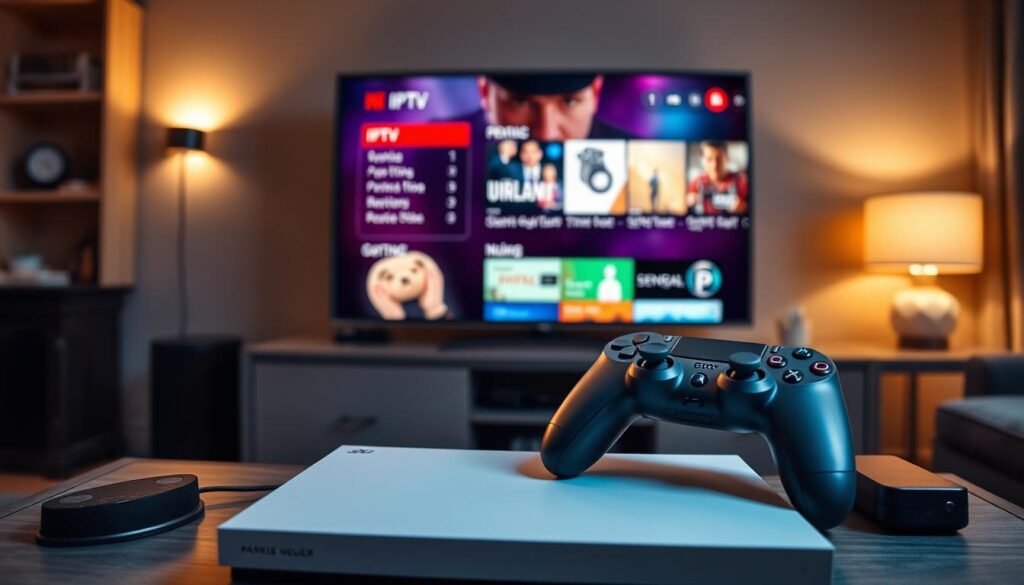
Xbox Series X/S setup methods and app availability
On Xbox Series X/S, first check the Microsoft Store for official app support. If an app exists, install it for the smoothest playback and controller-friendly navigation.
If the app is missing, use the console’s Edge browser to open your provider’s web player. Expect occasional format or buffering tradeoffs with browser playback compared to a native app.
PlayStation setup options and browser-based limitations
PlayStation supports native streaming apps in the PlayStation Store but has more regional gaps. When apps aren’t available, you can try the console’s browser.
Browser streaming on PlayStation often hits limits: some sites block playback, controls feel awkward with a gamepad, and video formats may not be supported. That can cause hiccups during live sports or high‑bitrate feeds.
- When to use a console: you already own it, want one remote, or need a spare player fast.
- When not to: if you need rock‑solid playback and easy app updates, a Fire TV Stick or Apple TV is usually the simpler option.
Family tip: save login links to a phone and use copy/paste via your console’s keyboard to avoid retyping long passwords with a controller. Create a short launch guide so anyone can open the right app quickly.
Managing Internet Speed and Quality for Multiple Streams
Plan your home network like a highway: know how many lanes (streams) you need before rush hour hits. A quick check prevents surprise buffering during big events and keeps your family happy.
How to estimate total bandwidth
Use simple math: count simultaneous streams and add their needs. HD needs about 10 Mbps each; 4K needs ~25 Mbps.
Examples:
- 2 HD streams = ~20 Mbps
- 4 HD streams = ~40 Mbps (allow overhead → aim for 50 Mbps)
- 1 4K + 2 HD = ~45 Mbps (plan for 50–60 Mbps)
Quality settings to prevent buffering
Lower app quality to reduce buffering during peak hours. Pick 720p or adaptive quality in the player or provider portal when the network gets busy.
Tip: turn off high-bitrate options on background screens to free bandwidth for the main TV.
Why big screens reveal problems more than phones
Large TVs show compression artifacts and dropped frames more clearly. A stream that looks fine on a phone can expose quality issues on a 65‑inch screen.
Home networking upgrades that move the needle
Improve stability with a better router, mesh Wi‑Fi for coverage, and Ethernet to the main TV. Move the router away from walls and crowded channels to boost real-world speed.
Quick triage when everything buffers
- Run a speed test on a wired computer to check your internet baseline.
- Switch the main TV to Ethernet; retest playback.
- Pause background uploads or cloud backups during peak family viewing.
- Reboot the router and check channel congestion on your Wi‑Fi band.
Keeping Your IPTV Account Secure While Sharing Across Devices
A few simple safeguards keep your account private while everyone enjoys their shows. Follow these steps so you share access without handing your login to strangers or losing sessions at the wrong moment.
Password best practices and what not to share
Use a long, unique password and never reuse it across services. Write it in a password manager so family members can access when needed without emailing credentials.
Logging out of unused devices to protect your access
Sign out on old tablets and guest TVs to free connection slots and avoid surprise lockouts. If one device is lost or sold, reset your account password to immediately revoke its access.
When a VPN is a helpful option for privacy or travel restrictions
A VPN is a good option on public Wi‑Fi or when hotel networks block streams. Test its speed first—VPNs can slow your connection and affect playback.
Quick rule: follow your provider’s rules to avoid suspicious-login flags that can pause service or require verification.
Troubleshooting IPTV Multiple Devices Issues
A step-by-step check will show whether the problem is a local gadget, your Wi‑Fi, or the provider’s server. Start simple and test one stream at a time so you stop guessing and find the root cause faster.
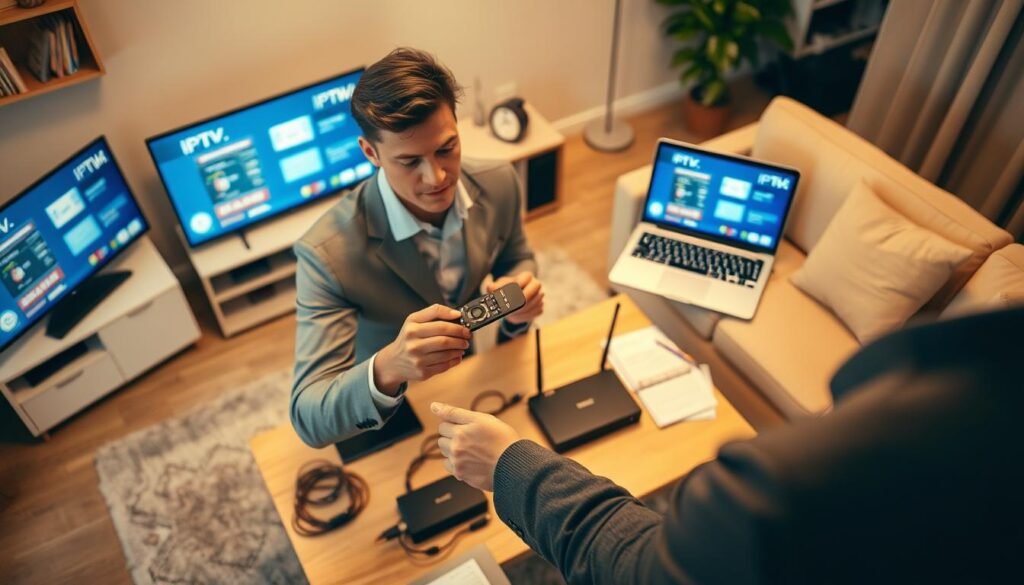
Fixing “maximum connections reached” without losing your place
If you see a connections limit error, identify who is streaming now and ask them to pause. Sign out unused accounts from old tablets or guest TVs to free slots.
Quick fix: sign out a device, refresh the app, then resume so you don’t lose your channel or playback spot.
What to do when all screens slow down at the same time
Run a speed test and check your router load. If total streams exceed your plan, lower quality or pause background uploads.
If your internet speed is fine, reboot the router and test one screen wired to see if Wi‑Fi coverage was the bottleneck.
When one device won’t play but others work
Update or reinstall the app, clear its cache, and restart the device. Verify the playlist or server URL on that gadget.
How to tell if the problem is your connection, the app, or the provider server
- Play the same channel on a phone using mobile data—if it works, the issue is your home internet.
- Try another app or browser on a computer to isolate app versus server problems.
- Collect details before you call support: device model, app name/version, server URL, time, and exact error message.
“Testing one stream at a time is the fastest way to pinpoint whether buffering is caused by Mbps limits, local Wi‑Fi, or the provider.”
Conclusion
Wrap up with a simple rule: treat your subscription, apps, and internet as one system so streaming stays reliable.
Choose a plan that covers your household’s connections, pick a trusted player like iptv smarters or TiviMate, and set main favorites and EPG for fast access to channels and shows.
Balance quality and stability: use Ethernet for big tvs or boost Wi‑Fi for wide coverage so content looks great. If trouble appears, test one device, one app, and one network path at a time to isolate the cause.
Next step: pick your primary viewing devices, confirm your provider supports them, and adjust your subscription so you pay for the right number of connections. That simple setup keeps daily viewing effortless and saves you money.