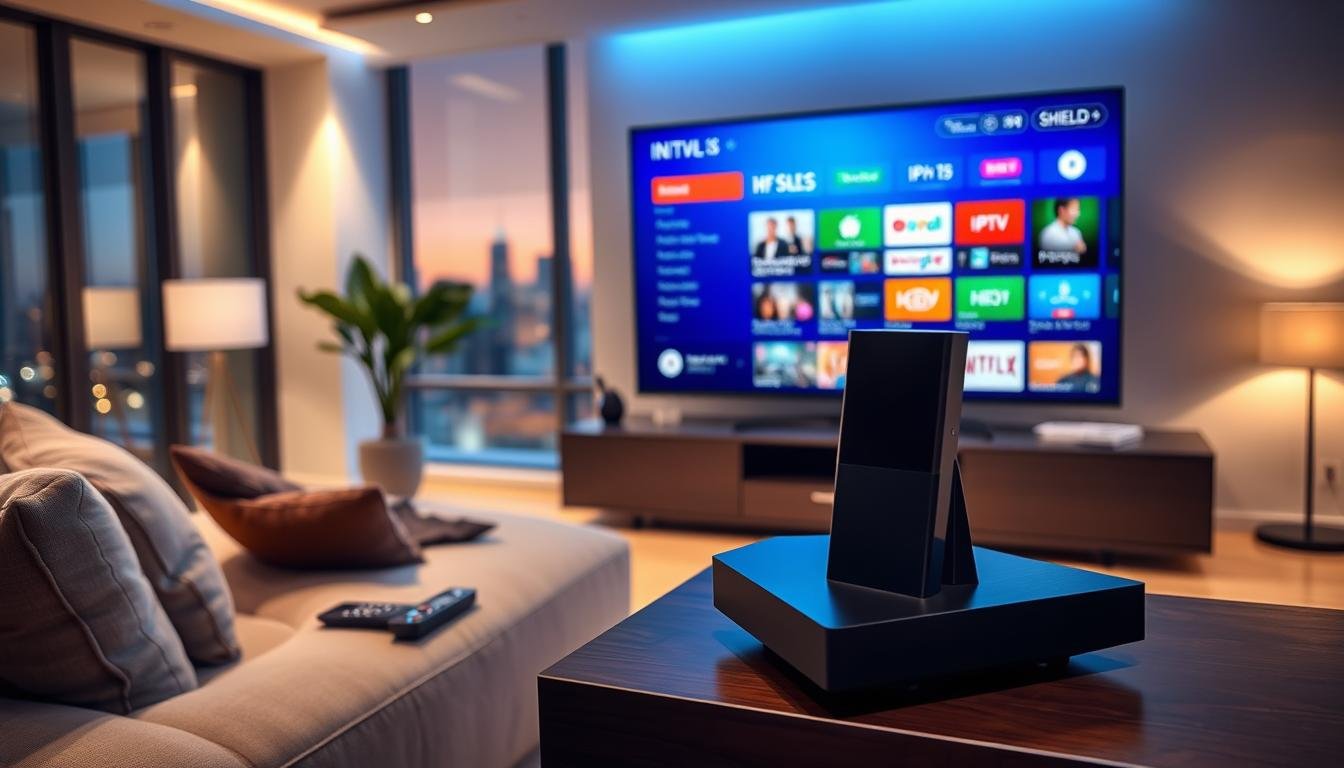
Are you tired of missing your favorite shows because of limited cable options? Your Nvidia Shield can change how you watch TV. It lets you access thousands of channels and on-demand content from your living room.Best IPTV Player for Nvidia Shield.
Nvidia Shield is one of the most powerful streaming devices out there. It offers smooth performance, fast loading times, and great picture quality. The right IPTV player makes your viewing experience even better.
Choosing the right IPTV player is key. Not all players work the same on Nvidia Shield. Some offer better stability, clearer images, and easier navigation. Others may have buffering or confusing menus. Your choice affects your daily entertainment.
This guide will help you understand IPTV players for Nvidia Shield. You’ll learn what makes Nvidia Shield great for streaming. You’ll find out which players perform best. You’ll also get simple steps to set everything up. By the end, you’ll know how to pick the perfect IPTV player for you.
Key Takeaways
- Nvidia Shield delivers superior performance and speed for IPTV streaming compared to basic streaming devices
- Popular IPTV players like Kodi, TiviMate, and Perfect Player each offer different strengths and features
- Setting up IPTV on Nvidia Shield takes just minutes with straightforward installation steps
- Picture quality and stability depend heavily on your internet connection and the IPTV player you select
- The best IPTV player matches your specific needs for channel variety, recording options, and ease of use
- Nvidia Shield integrates seamlessly with your existing TV setup and smart home devices
Understanding IPTV and Its Benefits
Before you set up IPTV on your Nvidia Shield, it’s key to know what IPTV is. It’s a technology that’s gaining popularity fast. This section explains IPTV basics and how it differs from traditional TV.
What is IPTV?
IPTV (Internet Protocol Television) sends TV channels and on-demand content over the internet. Unlike traditional TV, it doesn’t use satellite or cable connections. Your TV content comes straight to your device via your internet connection.
IPTV services stream live TV, movies, and more directly to your device. They use a playlist to organize content, making it easy to find what you want. Modern IPTV supports HD & 4K streaming, Catch-up TV, and more.
Advantages of Using IPTV
IPTV is popular for many reasons. Cable TV prices are rising, and IPTV offers a better way to watch TV. Here are some benefits:
- Watch on-demand content whenever you want
- Access international channels not available through cable
- Stream on multiple devices at the same time
- Enjoy high-quality picture with HD and 4K streaming
- Save money compared to traditional cable TV
- Use the EPG TV guide to plan your viewing
How IPTV Differs from Traditional TV
The main difference between IPTV and traditional TV is how content is delivered. IPTV uses your internet connection, while traditional TV uses physical infrastructure. This gives you more control over what and when you watch.
| Feature | IPTV | Traditional Cable/Satellite |
|---|---|---|
| Content Delivery | Internet-based streaming | Physical cables or satellite signals |
| Picture Quality | HD, Full HD, 4K available | Standard to HD |
| On-Demand Options | Extensive VOD libraries | Limited on-demand |
| Device Compatibility | Multi-device support | TV box mainly |
| Channel Variety | Local, national, and international | Regional packages |
| Cost | Typically lower monthly fees | Rising subscription costs |
Exploring the best IPTV in USA shows how it offers reliability and variety. Your Nvidia Shield is great for enjoying all IPTV has to offer.
Why Choose Nvidia Shield for IPTV
Nvidia Shield is a top choice for watching IPTV at home. It combines advanced tech with easy-to-use features. This makes watching your favorite shows simple and fun. With Nvidia Shield, you get a device made for smooth, reliable streaming.
Superior Performance and Efficiency
The Nvidia Shield’s robust hardware capabilities are its main strength. It streams high-quality video without lag or delays. Whether it’s live sports, movies, or TV series, you get smooth playback.
The device’s powerful processor handles many tasks at once. This means your streaming is fast and steady. You can watch without interruptions, and the device stays cool and quiet, even during long sessions.
User-Friendly Interface
Nvidia Shield’s design makes navigating IPTV apps easy. The menu is clean and simple, so you can find what you want to watch quickly. You don’t need to be tech-savvy to use it.
The device works well with many IPTV services and has a user-friendly interface. The remote control feels natural, and voice search lets you find shows by speaking.
Compatibility with Multiple Apps
Nvidia Shield offers access to many IPTV applications. You can install popular players like IPTV Smarters Pro. These players add extra features and reliability to your viewing experience.
- IPTV Smarters Pro for advanced streaming options
- Support for multiple streaming services simultaneously
- Easy installation of new apps whenever you want
- Regular updates that improve performance and security
The device supports dozens of IPTV applications. This gives you flexibility in choosing your preferred player. Whether you want specific features or channel selections, Nvidia Shield lets you customize your setup.
Top IPTV Players for Nvidia Shield (Best IPTV Player for Nvidia Shield)
Nvidia Shield users have many IPTV apps to choose from. This makes streaming better. The right player can change how you watch your favorite shows.
Each app has its own strengths. Knowing what each offers helps you find the best one for you.
Overview of Popular IPTV Players
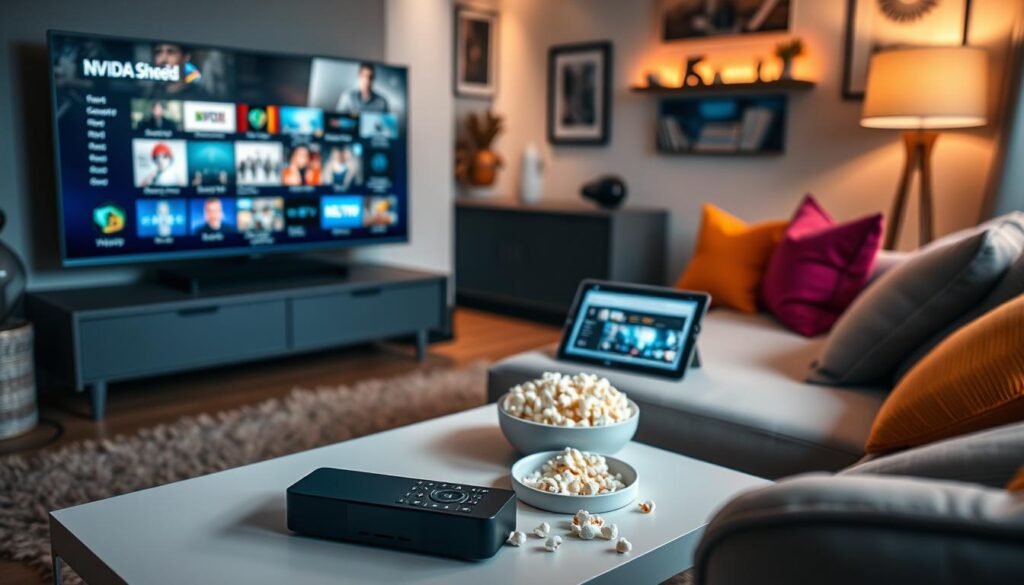
Several apps stand out for Nvidia Shield users. TiviMate is a top choice for Android IPTV. It has a smooth interface like premium cable TV.
IPTV Smarters Pro works on many platforms. It supports M3U URLs and Xtream Codes API login. Its design makes finding live TV, movies, and series easy.
Perfect Player, OTT Navigator, and GSE Smart IPTV are also great options. They each offer unique ways to stream on your Nvidia Shield.
Features to Consider When Choosing
Choosing the right IPTV player depends on what you value most. Consider these key points:
- EPG Support – TiviMate has great EPG support for easy browsing
- Catch-up TV and Recording – TiviMate lets you watch past shows and record new ones
- Playlist Management – Look for apps that handle multiple playlists well
- Interface Design – Choose an app with a user-friendly interface
- Customization Options – Consider how much you can adjust settings
- Regular Updates – Pick a player that keeps getting better
With your Nvidia Shield, you can try out many players. Find the one that suits your lifestyle best.
Setting Up IPTV on Your Nvidia Shield
Setting up your Nvidia Shield for IPTV streaming is simple. First, check if your device meets the basic needs. It should have enough storage and be updated to the latest version. Also, a fast internet connection is key for quality streaming.
A minimum speed of 25 Mbps is needed for HD content. For 4K content, you’ll need even faster speeds. Make sure your internet connection is up to par before starting.
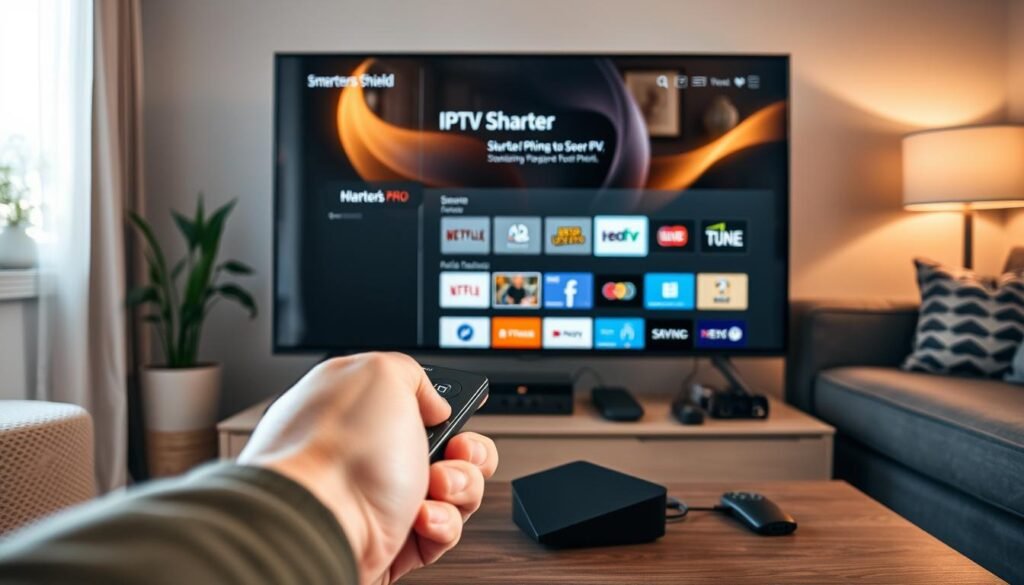
The setup process has two main parts: installation and configuration. Each part is easy to follow. You’ll be streaming your favorite channels in minutes after completing both steps.
Step-by-Step Installation Guide
Installing IPTV Smarters Pro on your Nvidia Shield is easy. First, make sure you have a stable internet connection and enough storage. Then, go to the IPTV Smarters Pro website and download the APK file.
You can download the APK directly on your Shield or on your computer and transfer it via USB drive. For the direct method, open your Shield’s browser and visit the IPTV Smarters Pro website. After downloading, find the APK file using a file manager app.
If you don’t have a file manager, get one from the Google Play Store. Locate the APK file in your Downloads folder, click on it, and follow the on-screen instructions. The installation is quick. Once done, you’ll find the app in your Shield’s app drawer.
Here’s a quick checklist for installation:
- Turn on your Nvidia Shield device
- Open Google Play Store or use the built-in browser
- Search for IPTV Smarters Pro or navigate to its official website
- Download the APK file to your device
- Use a file manager to locate the downloaded file
- Click the APK file and accept the installation prompt
- Wait for installation to complete
- Find the app in your apps drawer
Configuring Your IPTV Settings
Configuration is where you connect your IPTV player to your service. Launch IPTV Smarters Pro for the first time, and you’ll see a login screen. You’ll need to enter your login credentials and your IPTV provider’s details.
If your provider uses Xtream Codes, select “Login with Xtream Codes API.” Enter your username, password, and server URL. If your provider uses M3U playlists, choose “Load Your Playlist or File/URL,” then select “Add URL” and paste your M3U link. After entering these details, click “Add User” and the app will connect to your service and load your channels.
Once connected, customize your settings to match your preferences. Here’s what you can adjust:
- Set your EPG source (usually automatic)
- Enable parental controls with a PIN code for security
- Choose your preferred video player
- Adjust streaming quality based on your internet speed
- Enable catch-up TV if your provider supports it
- Organize channels into favorite lists
For detailed instructions on how to install IPTV Smarters on your Nvidia, check official guides. They provide step-by-step instructions with visuals. Enter your IPTV subscription details carefully to ensure a proper connection.
After configuration, your channels should load quickly. This depends on how many channels your service offers. Always keep your IPTV player apps updated for the best performance and new features. Most players will notify you when updates are available, so accept them when prompted.
Streaming Experience with Nvidia Shield
Setting up IPTV on your Nvidia Shield brings a better viewing experience than traditional cable. You get high-quality video streaming thanks to Nvidia Shield’s strong hardware. This means smooth playback without the usual TV interruptions.
Using your Nvidia Shield with reliable IPTV apps adds to the magic. Apps like IPTV Smarters Pro enhance your viewing experience. They work well with your device’s powerful processor for top-notch performance.
Picture Quality and Performance
Your picture quality depends on your IPTV provider and internet connection. Modern IPTV supports HD & 4K streaming for clear images. Nvidia Shield and IPTV Smarters Pro handle 4K content if your provider offers it and your internet is stable.
Nvidia Shield’s advanced processor makes video streams instant. This means no lag or buffering. You get smooth channel changes and fast loading times for a natural viewing experience.
- Experience true 4K resolution when available
- Enjoy consistent frame rates without stuttering
- Access HDR content for enhanced color depth
- Stream multiple channels without system slowdown
User Experience and Navigation
Navigating your IPTV setup should be easy. Nvidia Shield’s interface makes everything accessible with minimal effort. Your remote control works fast, and menus load quickly for easy channel finding.
IPTV Smarters Pro makes things even better with organized channels and easy content search. You can browse many channels without getting lost. The app’s design is user-friendly, making your entertainment more enjoyable.
| Feature | Benefit to Your Viewing |
|---|---|
| 4K Streaming Support | Ultra-sharp picture quality for compatible content |
| Fast Processing Power | Instant app launches and zero buffering delays |
| User-Friendly Menus | Quick access to channels and settings |
| Stable Connectivity | Uninterrupted streaming throughout your viewing session |
Your Nvidia Shield turns streaming IPTV into a premium experience, rivaling paid cable services. The mix of strong hardware and compatible apps makes viewing effortless and rewarding.
Features to Look for in an IPTV Player
Choosing the right IPTV player for your Nvidia Shield is key. Look for players that support many playlist formats like M3U and Xtream Codes API. They should have easy-to-use interfaces and play content smoothly with little buffering. Also, they should offer EPG support for program info and work on various devices.
Channel Variety and Availability
The number and quality of channels are crucial for your entertainment. Find IPTV players with a wide range of local and international channels. They should also support catch-up TV, so you can watch shows that aired hours or days ago.
Consider these channel-related features:
- Access to hundreds of live channels across different categories
- Support for multiple streaming sources and providers
- Regular channel updates and additions
- Organized channel lists with search capabilities
- Favorite channel bookmarking for quick access
Recording and Time-Shift Capabilities
Recording your favorite shows gives you more flexibility. ProgDVB lets you set up automatic recordings and supports time-shifting. This means you can pause and rewind live TV.
Recording features to prioritize include:
- Automatic recording scheduler for programs you select
- Time-shifting support to pause and resume live TV
- Storage management options for recorded content
- Quick recording from the program guide
- Series recording for watching entire seasons
EPG (Electronic Program Guide) Functionality
A good EPG makes finding channels easy and fun. TiviMate offers detailed EPG support, catch-up TV, and advanced recording features. The EPG helps you plan your viewing with upcoming program info.
| EPG Feature | What It Offers | Your Benefit |
|---|---|---|
| Program Information | Show descriptions and air times | Know what to watch and when |
| Customizable Guides | Arrange programs by your preferences | Personalized viewing experience |
| Search Functionality | Find specific shows or movies quickly | Save time browsing channels |
| Program Reminders | Notifications for upcoming favorites | Never miss your preferred shows |
| Multi-Day View | See schedules several days ahead | Plan entertainment in advance |
Look for extra features that make your experience better. Multi-screen or picture-in-picture viewing lets you watch multiple channels at once. Parental controls with PIN protection keep adult content away from kids. Subtitle support and multiple audio track selection cater to different languages and preferences.
Customizable interface themes match your style and make navigation easy. External player support gives you flexibility. Chromecast or AirPlay integration lets you stream from mobile devices to your shield.
The right mix of features makes your IPTV experience enjoyable and functional. Focus on the ones that fit your viewing habits and lifestyle best.
Easy Integration with Other Devices
Nvidia Shield makes watching IPTV easy with its user-friendly interface. It connects with your TV, speakers, and mobile devices. This creates a smooth entertainment experience.
Connecting with Smart TVs and Sound Systems
Your Shield connects to your TV via HDMI. It sends high-quality audio to soundbars or home theaters through HDMI ARC or eARC. Older systems use the optical audio output.
It also works with smart home setups like Google Home. You can control it with voice commands and launch apps without touching the remote.
Using Remote Controls and Mobile Apps
The Shield remote uses Bluetooth, so you can control it from anywhere. The Nvidia Shield TV app turns your smartphone into a remote. This makes typing easier than using the on-screen keyboard.
Players like GSE Smart IPTV support chromecast, letting you stream to bigger screens from your phone. Cloud sync keeps your settings and favorites the same on all devices. So, you can watch on your Shield and then on your tablet without losing your spot.
- Bluetooth remote control with no line-of-sight needed
- Official Nvidia Shield mobile app for iOS and Android
- Universal remote support for consolidated control
- HDMI-CEC compatibility with most modern TVs
- Chromecast built-in for casting from mobile devices
The Shield is the heart of your connected home. It makes your entertainment system seamless and convenient.
Troubleshooting Common Issues
Even with a powerful device like the Nvidia Shield, you might face occasional IPTV problems. Most issues come from simple fixes rather than hardware troubles. Knowing where to start makes solving problems much easier.
A stable internet connection is key. For standard definition streaming, a minimum speed of 5 Mbps is recommended. For 4K streaming, you’ll need 25 Mbps or higher. Also, make sure your device has enough storage and is updated to the latest software version.
Connectivity Problems
When your IPTV won’t connect, start by checking your internet speed. Run a quick speed test on your Shield to see what you’re actually getting. If speeds are below what your internet service provider promised, contact them directly.
Your router and modem need attention too. Unplug both devices for 30 seconds, then plug them back in. This simple restart clears memory issues that slow down your connection.
Wi-Fi signals weaken over distance. Move your router closer to your Shield, or better yet, switch to a wired Ethernet connection. Wired connections give you more stable speeds and lower latency, which means fewer buffering problems.
Check what else is using your internet. Large downloads, video calls, or online gaming on other devices drain bandwidth. Pause these activities while streaming IPTV. Sometimes your IPTV provider’s servers cause connection issues, not your home network. Try switching to a different server if your provider offers multiple options. If you use a VPN for privacy, disable it temporarily to see if performance improves. VPNs can slow your connection or cause compatibility problems with certain IPTV services.
Playback and Streaming Issues
Playback problems range from audio that doesn’t match video to complete playback failure. When audio and video go out of sync, try switching to a different video player. Most IPTV apps let you pick external players like MX Player or VLC. Check your IPTV app settings for hardware acceleration options and toggle them on or off—sometimes software decoding works better for certain streams.
Stuttering and dropped frames usually mean your Shield is working too hard. Make sure your device has proper ventilation and isn’t stuffed into a tight space. Close background apps by going to Settings > Apps and force-stopping ones you’re not using. Clear your IPTV app cache at Settings > Apps > [Your IPTV App] > Clear Cache.
- Check if specific channels won’t play while others work fine
- Update your IPTV player app from the Play Store
- Verify your subscription is still active
- Ensure you entered your credentials correctly
- Confirm you have enough storage space for recordings
When playlist loading fails or authentication errors appear, double-check that your login information is correct. Even one wrong character prevents connection. Some providers limit simultaneous connections, so log out from other devices if needed. Check comprehensive troubleshooting guides for persistent streaming problems that won’t resolve with basic steps.
App crashes and freezing usually point to outdated software. Check Settings > Device Preferences > About > System Update to install the latest version. Your device has sufficient storage and is updated to the latest software version to prevent these crashes. If problems continue, uninstall and reinstall your IPTV app to fix corrupted data. A factory reset of your Shield works as a last resort but back up important data first.
| Issue | Quick Fix | Time Required |
|---|---|---|
| Slow connection | Switch to wired Ethernet | 2 minutes |
| App won’t load | Clear cache and restart | 1 minute |
| Out of sync audio | Change video player | 30 seconds |
| Login failure | Verify credentials | 2 minutes |
| Playback stuttering | Close background apps | 1 minute |
Most IPTV issues come down to checking your internet connection, verifying your credentials, and ensuring software stays current. Your Nvidia Shield has robust hardware that rarely causes problems, so focus on connectivity and settings first.
Tips for Enhancing Your IPTV Experience
To get the most from your Nvidia Shield IPTV, tweak your settings and add useful tools. Smart tweaks and apps can greatly improve your streaming. This makes your viewing experience better.
Recommended Settings for Optimal Performance
First, turn on hardware acceleration in your video settings. The Shield’s strong hardware lets you stream high-quality content smoothly. This one change can make a big difference.
Next, adjust your streaming quality to match your internet speed. Most apps let you choose between HD, Full HD, or 4K. This ensures your streams run smoothly without any issues.
Make your IPTV app remember where you left off. This lets you pick up where you stopped watching. Also, set up parental controls to protect adult content.
Organize your channels into favorites for easy access. TiviMate lets you customize your interface and manage favorites. This makes finding your favorite shows quick and easy.
Regular maintenance keeps your device running well. Clear your IPTV app cache monthly and restart your Shield weekly. Keeping apps updated also helps.
Additional Apps to Improve Streaming
There are many apps that can make your streaming better.
- VPN Services: ExpressVPN and NordVPN protect your privacy and unlock content. Choose fast providers to avoid speed drops.
- File Managers: X-plore File Manager and Solid Explorer help manage your content and recordings.
- Video Players: MX Player and VLC Media Player offer great playback features if your app lacks them.
- Audio Enhancement: Equalizer FX and Poweramp Equalizer let you customize your sound output.
- Network Tools: Network Analyzer helps troubleshoot connection issues by showing speed and stability.
- Media Organization: Plex Media Server turns your recordings into a library accessible on all devices.
- Backup Solutions: Backup apps save your settings for easy restoration after resets or changes.
| App Category | Recommended Apps | Primary Benefits |
|---|---|---|
| Privacy & Access | ExpressVPN, NordVPN | Secure streaming, geo-restriction bypass |
| File Management | X-plore, Solid Explorer | Content organization, file transfers |
| Video Playback | MX Player, VLC | Advanced codec support, customizable playback |
| Audio Quality | Equalizer FX, Poweramp | Sound enhancement, acoustic tuning |
| Network Monitoring | Network Analyzer | Connection diagnostics, speed testing |
| Media Organization | Plex Media Server | Unified library access, multi-device streaming |
Think about your viewing environment too. Adjust your TV settings for the best viewing. Proper lighting and a well-ventilated area also help.
Invest in quality audio for the best sound. Create different favorites lists for different types of content. Use EPG reminders to never miss a show.
Conclusion and Recommendations
You now know how to pick the best IPTV player for your Nvidia Shield. You’ve learned from IPTV basics to setting up your stream. Now, it’s time to use this knowledge to find the perfect player and service for you.
Summary of Best IPTV Players
TiviMate is the top choice for Android IPTV, working great on many devices. Android users should consider TiviMate and OTT Navigator for advanced features. Sports fans will love TiviMate’s EPG and recording for catching games anytime.
IPTV Smarters Pro is easy to use and works on many platforms. It’s great for using IPTV on different devices. Movie lovers might prefer apps with easy VOD organization.
Your choice depends on your needs. Families need strong parental controls. International viewers should look for apps with good subtitle support. TiviMate Premium is a great value, offering years of use for the price of basic cable.
Final Thoughts on Choosing the Right Player
The Nvidia Shield lets you try different IPTV players. Many users have both TiviMate and IPTV Smarters Pro. They use one as their main player and the other as a backup.
Remember, your IPTV player is just part of the solution. You also need a reliable IPTV service provider with quality streams. The best player can’t fix poor streams or unreliable service. Research providers well, looking for free trials and avoiding very cheap prices.
By understanding IPTV, choosing the right player, and setting it up well, you’re ready for a great streaming experience. The Nvidia Shield and the best IPTV player offer stunning quality and endless entertainment. Your streaming future is here.