Imagine cutting the cord and still watching your favorite shows in perfect quality. TiviMate Premium makes this dream a reality. It’s a game-changer for streaming in America.
Get ready to cut the cord and enjoy freedom. TiviMate Premium is the top choice for Android TV devices. It’s made for big screens and remote controls, not just phones. Your Firestick, NVIDIA Shield, or Android TV box will become so much more.
This guide is your complete roadmap to TiviMate Premium. Thousands of Americans have made it their top IPTV player. We’ll guide you through each step, making it easy to understand. You’ll learn how and why you’re doing each thing.TiviMate Premium Setup Guide USA.
Our aim is simple: have TiviMate running smoothly on your device. You’ll learn to customize it and understand its unique features. You’ll feel confident using advanced features that rival cable TV.
Key Takeaways
- TiviMate Premium is built for TV screens, not phones, making it perfect for America
- You can turn devices like Firestick and NVIDIA Shield into entertainment centers
- This guide takes you from installation to advanced features in easy steps
- TiviMate connects to IPTV services, letting you choose your content
- You’ll learn how to customize, troubleshoot, and optimize TiviMate
- The setup works the same way on all Android TV devices in the USA
What Is TiviMate Premium and Why Choose It?
TiviMate Premium is a special IPTV player for TVs. It connects directly to your IPTV service. This means you get live channels, on-demand content, and more.
It’s designed for easy use with a remote. The app works with most IPTV services in the USA. This makes your TV experience better.
Learning how to set up TiviMate is easy. It’s not just a video player. It’s a full entertainment solution, like traditional cable TV.
https://www.youtube.com/watch?v=Rhg6VvwTcto
Overview of TiviMate Features
The TiviMate Premium guide shows its special features:
- Fast Zapping: Switch channels quickly without waiting.
- Catch-Up TV: Watch shows you missed by scrolling back in the guide.
- Recording Function: Record your favorite shows like a DVR.
- Multiview Technology: Watch up to four sports games at once on one screen.
- EPG Integration: Use a full electronic program guide for easy channel browsing.
- Multiple Playlist Support: Manage several IPTV sources in one app.
- Favorites and Custom Groups: Organize your channels how you like.
- Parental Controls: Protect specific channels from younger viewers with a PIN.
- Cloud Sync: Your settings sync across devices.
Benefits of Using TiviMate Premium
Choosing TiviMate Premium is a smart move for cord-cutters. It costs about $10 a year or $30 for life. This is much less than traditional cable.
The app’s fast channel switching ends buffering problems. It turns your streaming device into a DVR. This means you never miss important moments.
Sports fans will love the multiview feature. It shows multiple games at once. The EPG support makes channel browsing feel like traditional cable TV.
Comparisons with Other IPTV Players
TiviMate stands out among IPTV solutions. Here’s how it compares:
| Feature | TiviMate Premium | Perfect Player | GSE Smart IPTV | IPTV Smarters |
|---|---|---|---|---|
| TV-Optimized Interface | Yes | Partial | Partial | Yes |
| Recording Function | Yes | Yes | Limited | Yes |
| Multiview (4 Screens) | Yes | No | No | Limited |
| Catch-Up TV | Yes | Yes | Yes | Yes |
| Cloud Sync | Yes | No | Limited | Yes |
| Annual Cost | $10 | Free/Premium | Free/Premium | Free/Premium |
| Lifetime Option | $30 | No | No | No |
| EPG Support | Full | Full | Full | Full |
TiviMate’s design and price make it a top choice. It’s your gateway to premium streaming. Upgrading to Premium gives you all the advanced features at a great price.
Getting Started with TiviMate
Before you start streaming with TiviMate Premium, you need to know a few things. You must check if your device meets the system requirements and if it’s supported. This guide will help you understand what you need for a smooth setup.
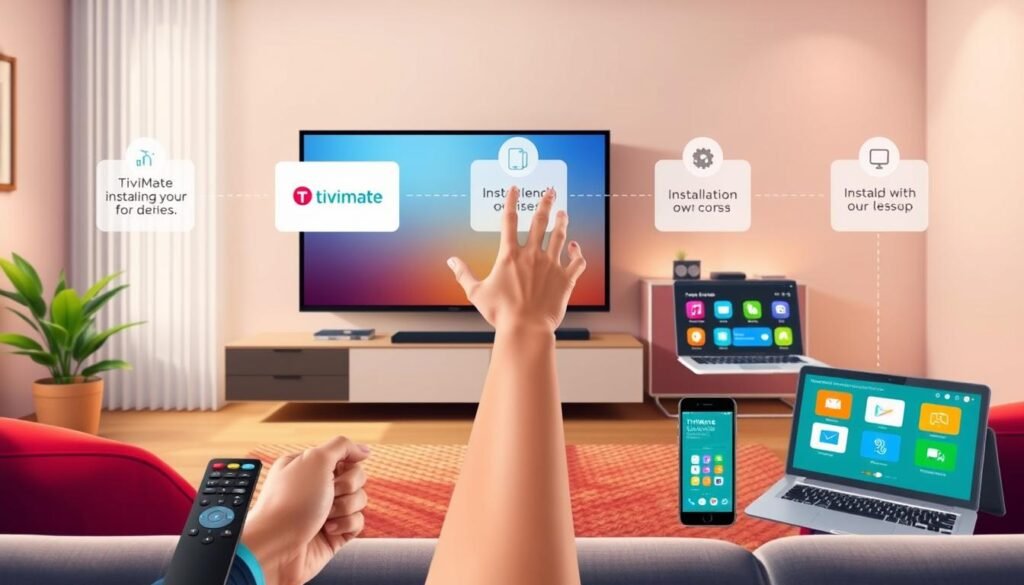
System Requirements for Installation
Your device needs certain specs to run TiviMate Premium well. The most important thing is your internet speed. You should have at least 5-10 Mbps per stream for HD quality. Without enough speed, your streams might buffer or freeze.
Your device’s software should be up to date. TiviMate works on Android systems. Make sure your device has internet before you start. Also, you need a separate IPTV service subscription because TiviMate doesn’t provide content.
- Minimum internet speed of 5-10 Mbps per stream for HD quality
- Updated Android software version on your device
- Active internet connection available
- Separate IPTV service subscription required
- Sufficient storage space on your device
Supported Devices and Platforms
TiviMate Premium only works on Android devices. This means some popular devices won’t support it. But, Android TV boxes, NVIDIA Shield, and Amazon Firestick are great choices for streaming.
Unfortunately, there’s no TiviMate app for iOS. If you have an Apple TV or iPad, you can’t install TiviMate. But, Android devices are widely available and affordable for streaming.
| Device Type | Compatibility Status | Installation Method |
|---|---|---|
| Android TV Box | Fully Compatible | Google Play Store |
| NVIDIA Shield | Fully Compatible | Google Play Store |
| Amazon Firestick | Compatible | Sideloading Required |
| Apple TV | Not Compatible | No iOS App |
| iPad | Not Compatible | No iOS App |
| Android Smartphones | Compatible | Google Play Store |
How to Download TiviMate Premium
The download process varies based on your device. For most Android TV users, it’s easy. Firestick owners need to sideload, which requires a few extra steps.
For Android TV devices and NVIDIA Shield: Open the Google Play Store. Search for “TiviMate” and select the official app. Tap the install button, and the app will download and install automatically.
For Amazon Firestick (TiviMate USA configuration): First, install the Downloader app. Open Downloader and enter the TiviMate download link. The app will download to your Firestick. Then, install the APK file through your device settings. This process takes a bit longer but works reliably.
- Ensure your device has internet connection
- For Android TV: Open Google Play Store and search TiviMate
- For Firestick: Install Downloader app from Amazon Appstore first
- Download the TiviMate APK file using Downloader
- Install the app on your device
- Launch TiviMate and begin configuration
Knowing how to install TiviMate Premium correctly from the start helps avoid mistakes. Check if your device is on the compatibility list. Make sure your internet speed meets the minimum requirements. Have your IPTV subscription ready before starting. Once everything is in place, you’re ready to set up your device.
Setting Up TiviMate Premium for the First Time
Starting TiviMate on your device is exciting. It changes how you watch TV. The setup varies by device, but we’ll guide you through it. You’ll set up your account and unlock premium features with TiviMate Premium activation.
Installing TiviMate on Android Devices
Installing TiviMate is different for each device. Android TV users find it the easiest.
For Android TV:
- Open the Google Play Store on your Android TV device
- Search for “Tivimate IPTV Player”
- Click the install button
- Wait for the installation to complete
- Launch the app from your apps menu
For Amazon Firestick:
Firestick users need extra steps. TiviMate isn’t in the Amazon Appstore.
- Go to Settings on your Firestick
- Navigate to My Fire TV
- Select Developer options
- Enable “Apps from Unknown Sources”
- Download and install the Downloader app from the Amazon Appstore
- Launch Downloader and enter the URL: https://tivimate.com/download
- Allow the download to complete
- Install the APK file when prompted
Configuring Initial Settings
First time using TiviMate, you’ll see a welcome screen. Read and accept the terms and conditions. They explain how the app works and protects your account.
Go to Settings to learn about the app’s basic options. You’ll see menus for playlists, recordings, and preferences. We’ll cover these in detail later.
Creating Your Account and Subscribing
To activate TiviMate Premium, create an account and pick a plan. The TiviMate companion app is key for Firestick and other non-Google Play devices.
Steps for TiviMate companion app setup:
- Download the TiviMate Companion app on your Android smartphone from the Google Play Store
- Open the Companion app and create a new account with your email address
- Choose your subscription plan during account creation
- Complete the payment process through Google Play
- Return to TiviMate on your TV device
- Go to Settings > Unlock Premium
- Log in with the credentials you just created
- Wait for the premium features to activate on your TV
You have two subscription options for TiviMate Premium activation:
| Subscription Plan | Cost | Duration | Best For |
|---|---|---|---|
| Annual Plan | $10 per year | 12 months | Budget-conscious viewers seeking great value |
| Lifetime Plan | $30 one-time payment | Forever | Long-term users wanting permanent access |
After activating TiviMate Premium through the companion app, all premium features unlock on your TV. Enjoy recording, multiview, and advanced settings for a better streaming experience.
The TiviMate companion app setup is great for Firestick owners. It lets you pay without Google Play. Your premium subscription works on all devices with your account login.
How to Integrate Your IPTV Service
Now that TiviMate is installed, it’s time to link it to an IPTV service. Think of it like fueling your car. TiviMate is the player, but it needs content from an IPTV subscription to work. This section guides you through picking a reliable provider and connecting it to your TiviMate IPTV player setup. You’ll be watching channels in no time.
Choosing an IPTV Service Provider
Finding the right IPTV provider is key for a great viewing experience. Look for services with reliable servers, lots of channels, and strong EPG support. Your internet speed is also important—aim for at least 5-10 Mbps for HD streaming without buffering.
Several popular providers work great with TiviMate:
| Provider Name | Live Channels | VOD Content | Video Quality | Server Uptime |
|---|---|---|---|---|
| Vizo IPTV | Extensive selection | Included | HD/4K | Optimized for fast zapping |
| Even IPTV | 110,000+ | On-demand | Ultra HD/4K/HD | 99.9% uptime |
| CalmaHUB | 20,500 | 100,000 titles | HD and standard | Reliable performance |
| Parrot IPTV | 20,000 | 120,000 movies/shows | HD/4K available | Fast server response |
Adding the IPTV Playlist to TiviMate
TiviMate supports two connection methods: M3U playlists and Xtream Codes API. Most beginners find Xtream Codes simpler. It automatically imports channels, categories, and program guides in one step.
Adding an M3U Playlist:
- Open TiviMate on your device
- Navigate to “Playlists” from the main menu
- Select “Add Playlist”
- Enter your M3U URL link in the provided field
- Add your EPG URL for program guide data
- Save and wait for channels to load
Using Xtream Codes Login:
- Open TiviMate and go to “Playlists”
- Choose “Add Playlist”
- Select “Xtream Codes Login”
- Enter your server URL, username, and password from your provider
- Allow TiviMate to import your channels and EPG data automatically
- Channels organize themselves by category
Xtream Codes is preferred when available. It delivers better EPG integration and automatic channel organization.
Troubleshooting Connection Issues
Connection problems can happen, but they’re usually easy to fix. Here are common issues and solutions:
- Playlist Failed to Load: Check your internet connection and verify that your M3U or Xtream credentials are correct
- Missing EPG Data: Confirm your EPG URL is valid and your provider supports program guides
- Buffering or Freezing: Ensure you have at least 5-10 Mbps internet speed and close other apps using bandwidth
- Black Screen: Refresh your playlist through TiviMate’s menu or restart the app
- Authentication Errors: Double-check that your IPTV subscription is active and your login details are entered correctly
Your successful TiviMate IPTV player setup depends on choosing a reliable provider and connecting it properly. Once these steps are complete, you’re ready to customize your viewing experience in the next section.
Customizing Your Viewing Experience
Once you’ve connected your IPTV service to TiviMate, you’re ready to make it your own. TiviMate USA configuration offers tools to organize channels, create playlists, and adjust the interface. This guide will help you customize TiviMate to fit your viewing style.
Setting Up Favorites and Playlists
Make your favorite channels easy to find. With TiviMate USA, you can create a Favorites list. Just highlight a channel and tap the star icon to add it.
You can also group channels by type. This is useful for separating sports from movies or news from kids’ shows. It keeps your channels organized and easy to find.
- Press the star icon to mark channels as favorites
- Create custom groups for different content types
- Rearrange channels by highlighting and dragging them
- Hide channels you never watch to reduce clutter
Exploring Settings for Channel Management
Channel management settings give you control over what you see. You can rename channels, reorder them, and hide unwanted ones.
Go to Settings > Channels to access these tools. Here, you can manage playlists from different providers. Switching between playlists is easy with just a few taps.
Personalizing Interface Appearance
Customize TiviMate to your liking. Choose between light and dark themes, and adjust font sizes for better readability.
TiviMate USA configuration lets you change the layout to show more or fewer channels. You can also modify the Electronic Program Guide (EPG) and control whether channel logos appear.
| Customization Option | What It Does | Where to Find It |
|---|---|---|
| Theme Selection | Switch between light and dark modes | Settings > Appearance |
| Font Size Adjustment | Change text size for easier viewing | Settings > Display |
| Layout Configuration | Adjust channels shown per screen | Settings > Interface |
| EPG Display | Customize program guide appearance | Settings > EPG |
| Color Scheme | Reduce eye strain with custom colors | Settings > Colors |
These features turn TiviMate into your perfect streaming companion. With TiviMate USA configuration, you create a viewing experience that suits your unique habits and preferences.
Using TiviMate’s Advanced Features
Now that you’ve set up your TiviMate account and added your IPTV services, it’s time to explore the powerful capabilities that make this platform stand out. The TiviMate Premium features guide reveals tools that transform your viewing experience far beyond basic channel browsing. These advanced functions let you take control of your entertainment like never before, giving you features similar to traditional cable TV systems but with much more flexibility.
How to Record Live TV
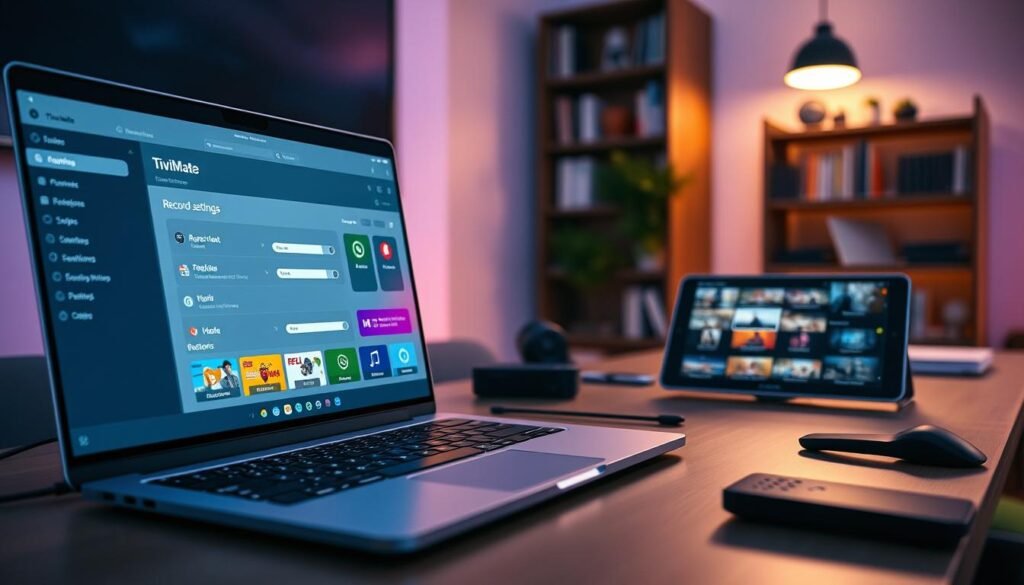
Recording your favorite shows is one of the most useful TiviMate Premium features. When you find a program you want to keep, you can schedule it directly from the Electronic Program Guide. Simply browse through the guide, select your show, and choose the recording option. Your recordings save to a dedicated folder on your device, and you can watch them anytime you want.
Here’s how to get started with recording:
- Open the Electronic Program Guide on your TiviMate screen
- Find the program you want to record
- Press the record button or select the recording option
- Access your saved recordings through the Recordings menu
- Play back your content whenever it suits your schedule
You can configure where your recordings store and how TiviMate names them, giving you full control over your video library. This feature works like a digital video recorder, except you manage everything yourself through a simple interface.
Utilizing Multi-view and Picture-in-Picture
The multi-view feature is a game-changer for sports fans and news watchers. Imagine watching four NFL games simultaneously during Sunday football, or keeping tabs on multiple news channels during breaking news events. You can watch up to four channels at once in a customizable layout, deciding which channels appear in each section of your screen.
Setting up multi-view involves these straightforward steps:
- Access the multi-view option from your TiviMate menu
- Select up to four channels you want to display
- Arrange the layout to prioritize certain channels
- Switch between channels within each quadrant as needed
Picture-in-picture mode works differently—it lets you keep one channel playing in a small window while you browse other channels or explore menus. This feature is perfect when you don’t want to miss important moments while navigating your lineup.
Accessing EPG (Electronic Program Guide)
The Electronic Program Guide displays program schedules just like traditional cable television. You can browse forward to see what’s coming up next week or scroll backward to access catch-up content. The guide shows program information, letting you read descriptions before watching.
Your EPG capabilities include:
| Feature | What It Does | Best Used For |
|---|---|---|
| Forward Browsing | View upcoming programs for days ahead | Planning your viewing schedule |
| Backward Scrolling | Access shows that already aired | Watching missed programs |
| Genre Filtering | Sort programs by category | Finding specific content types |
| Catch-Up TV | Rewind live television or select past content | Never missing your favorite shows |
| Program Reminders | Set notifications for upcoming shows | Remembering important broadcasts |
The catch-up TV feature lets you rewind live television or select shows from the past few days depending on your IPTV provider’s support. When you find a program you missed, you can watch it on demand, adding flexibility to your viewing habits.
You can learn more about these capabilities by visiting the TiviMate Premium features guide, which provides detailed instructions for maximizing each tool. The EPG automatically updates with your provider’s schedule, ensuring you always have current program information at your fingertips.
Navigating Common Issues and Solutions
Even with a solid TiviMate Premium Setup Guide USA foundation, you might run into problems. This section gives you the tools to fix them fast. You’ll learn about common errors, how to boost your app’s performance, and when to reach out for help. Think of this as your troubleshooting toolkit for keeping your streaming experience smooth and uninterrupted.
Common Errors and Their Solutions
Playlist loading issues happen often. Your IPTV provider sometimes rotates stream sources, which can cause channels to stop working. The fix is simple: restart the app or refresh your playlist through Settings. If refreshing doesn’t work, clear the app’s cache and data, reboot your device, then re-add the playlist fresh.
Buffering and freezing make viewing frustrating. These usually stem from three sources: your internet connection, your IPTV service being inactive, or TiviMate’s settings. Run a speed test to check your connection. Verify that your IPTV service is active by testing other channels. When you explore the TiviMate Ultimate Guide for more detailed troubleshooting, you’ll find specific playback settings to adjust.
EPG (Electronic Program Guide) problems occur when the EPG URL has typos or when the server doesn’t respond. Check your URL for mistakes first. Clear the EPG cache through Apps → TiviMate → Clear Cache. If that fails, try a different EPG source or use a VPN to restore access.
| Problem | Cause | Quick Fix |
|---|---|---|
| Playlist Won’t Load | Provider rotates streams or temporary server issue | Restart app, refresh playlist, re-add if needed |
| Constant Buffering | Slow internet or oversized buffer settings | Check speed test, reduce buffer size in Settings |
| EPG Not Showing | Wrong URL or cache corruption | Verify URL, clear EPG cache, switch sources |
| Video Stuttering | Refresh rate mismatch between stream and TV | Enable AFR (Auto Frame Rate) in Settings |
| Playback Freezes | App conflict or insufficient resources | Force stop TiviMate, clear cache, reboot device |
Optimize TiviMate Performance on Your Device
Getting the best performance starts with playback settings. Go to Settings → Playback and turn on AFR (Auto Frame Rate). This crucial feature matches your TV’s refresh rate to the stream, which is essential for sports. It stops the judder and stuttering during fast action like football or basketball games.
Buffer size matters for your connection speed. Larger buffers help slower connections play smoothly. Smaller buffers reduce delay on faster connections. Adjust this in Settings → Playback based on your internet speed.
For 4K TV owners, verify your Android TV box resolution is set to 4K in your device settings. This ensures your TiviMate Premium Setup Guide USA experience shows true 4K quality. Clear your app’s cache regularly through Settings → Apps → TiviMate → Clear Cache when the app becomes sluggish.
- Force stop TiviMate and restart it completely
- Reboot your router and streaming device
- Use a wired Ethernet connection instead of Wi-Fi for stability
- Check if your ISP throttles video streams
- Disable VPN if it’s causing lag during playback
Contacting Support for Help
Know who to contact when problems persist. Reach out to your IPTV service provider if channels stop working or content is missing. Contact TiviMate’s support team for app-related bugs or technical issues. The TiviMate community forums and user groups are gold mines of solutions shared by experienced users who’ve faced similar problems.
Before contacting support, gather information. Note which channels fail, when the problem started, and what you’ve already tried. Take screenshots of error messages. This speeds up the support process.
Exploring Additional Features
TiviMate has tools that go beyond streaming. You can customize your experience with features like syncing devices and protecting your family. It also connects with other apps, making your setup fit your lifestyle.
The platform lets you manage content on multiple screens. You can set limits on what family members watch. Adding other players and apps makes your setup more flexible.
Syncing with External Devices
Your TiviMate Premium account includes cloud sync technology. This means your favorites, playlists, and settings follow you from room to room. When you have your living room TV and bedroom TV both running TiviMate, the cloud sync keeps everything matched up automatically.
Setting up device sync is simple:
- Log into your Premium account on each device
- Enable cloud sync in your settings menu
- Your channels and preferences update across all screens
- Changes made on one device appear on others within minutes
The TiviMate Companion app works on your smartphone. You can manage playlists from your phone and adjust settings without hunting for your remote control.
Setting Parental Controls
Keeping kids safe matters. TiviMate gives you PIN protection for adult channels and content categories. You control what appears on your screens.
Here is what you can do with parental controls:
| Feature | What It Does |
|---|---|
| PIN Protection | Blocks access to adult channels without your password |
| Category Blocking | Hides entire content groups from your channel list |
| Time-Based Limits | Restricts viewing during specific hours |
| Channel Hiding | Removes channels completely from view |
Your TiviMate USA configuration includes options to create a custom PIN. Apply this protection to specific channels or whole categories. You can unlock content temporarily when needed.
Integrating Third-party Apps
TiviMate works with external video players like VLC and MX Player. Some users prefer these players for better codec support or special playback features.
Integration benefits include:
- Better playback quality for certain video formats
- Extra features unavailable in standard playback
- Customized viewing experience with your chosen player
- Smooth handoff between apps during streaming
Your TiviMate USA configuration lets you set a default external player. When you select this option, video playback switches to your preferred app automatically. This gives you more control over how content plays on your screen.
Using the Companion app on your smartphone makes managing TiviMate easier. You become your own remote control. Add playlists, change settings, and manage recordings from anywhere in your house. Your family gets a complete entertainment setup that works together smoothly.
Keeping TiviMate Updated
Keeping TiviMate up to date is key for the best performance and new features. Updates fix bugs, improve security, and make streaming smoother. Whether you use TiviMate Premium on Android TV or Firestick, knowing how to update keeps it running well.
How to Check for Updates
To check your TiviMate version, go to the app’s settings and find “About.” Here, you’ll see your version number and if an update is available. On Android TV, updates are automatic through Google Play Store. You can also check manually by searching for TiviMate in Google Play Store and tapping “Update” if it’s available.
For Firestick users with sideloaded TiviMate, visit the TiviMate website to compare versions. Download the latest APK file with Downloader and install it over your current version. Your settings and playlists will stay the same.
Benefits of Regular Updates
Regular updates offer big benefits for your viewing experience:
- Bug fixes that prevent crashes and playback errors
- Performance improvements for faster, smoother streaming
- New features that enhance functionality
- Security patches that protect your data and device
- Better EPG handling and playlist management
Each update is based on community feedback. TiviMate developers use this feedback to improve the app. Staying updated makes your TiviMate Premium subscription even more valuable, as you get the latest features.
Automating Update Notifications
Android TV users can set up automatic updates in Google Play Store settings. Open the Play Store, tap your profile icon, select “Settings,” then “Network preferences.” Choose “Auto-update apps” and select “Auto-update apps over WiFi” for hands-free updates. This keeps TiviMate current without needing your attention.
You can also enable update notifications in TiviMate’s settings. Turn on alerts so you know when new versions are available. Always read the release notes before updating. If an update causes problems, check the TiviMate community forums or contact developer support for help. Keeping your app updated ensures the best streaming experience with your TiviMate Premium subscription USA.
Final Tips for the Best TiviMate Experience
You’ve made it through the TiviMate Premium Setup Guide USA. Now, you’re all set to enjoy your streaming like a pro. To get the most out of your setup, fine-tune your settings and stay connected with helpful resources.
Recommendations for Viewing Settings
Match your video quality to your internet speed. A stable connection of 5 to 10 Mbps per stream works well for HD content. If your connection is faster, choose high-bitrate streams for sharper pictures.
Turn on Auto Frame Rate (AFR) for sports or action movies. This smooths out motion and reduces screen jitter. For audio, enable surround sound if your TV and speakers support it. This makes dialogue clearer and action sequences more immersive.
Adjust your resolution to match your TV’s capabilities. If you have a 4K TV, set TiviMate to display 4K content. Keep your EPG URL updated for accurate program schedules. Choose IPTV services with reliable EPG data and high-bitrate for seamless TiviMate use.
Organize your channels into favorites and groups for quicker access. Use descriptive names for your playlists. Test your setup with short IPTV trials before committing to a long-term subscription. Prefer Xtream login credentials for better EPG mapping and category organization.
Engaging with the TiviMate Community
You’re not alone in your streaming journey. Thousands of TiviMate users share tips and solve problems together online. Check out Reddit forums and social media groups dedicated to streaming.
Ask questions without hesitation. Share your discoveries and help others. Stay updated on new TiviMate features and updates by following community discussions. These groups often highlight workarounds and cool customizations.
Resources for Learning and Troubleshooting
YouTube channels offer video tutorials on using TiviMate’s features. Written guides and documentation dive deeper into specific functions. Speed test apps like Ookla Speedtest help monitor your internet connection.
Backup your TiviMate settings before making major changes. This protects your customized playlists and favorites. Use VPN services for better privacy and to bypass ISP throttling. Refresh your EPG data regularly to keep program information current.
Mastering TiviMate is an ongoing journey. Experiment with different settings and features. Customize until the app feels built for your household. You now have the knowledge to set up and optimize TiviMate Premium like an expert.